From your first terminal to a workspace that travels
Start Herdr World on the Herdr host and open its URL: follow chapter 1. Not installed? Use the installation guide.
Practice one task: ask an agent to improve a README, review the changes, then check from your phone. No Git, SSH, or networking knowledge is needed to start.
With both tools installed: chapter 1 takes about 5 minutes; chapters 1-3 about 25 minutes. Allow 15-25 more for remote access, excluding installation, approvals, and troubleshooting. Stop at any completion check.
This static Pages tutorial does not run Herdr or keep terminals alive. You still need the Herdr World process.
1. Start here: see your own work locally
Three names, three jobs
The browser reaches your agent through two services:
Your browser / installed PWA
          |
          | HTTP + WebSocket
          v
Herdr World (command: herdr-world)
          |
          | Herdr control and terminal-render sockets
          v
Herdr server -> workspace -> tab -> pane -> shell / agent
Herdr owns terminals; Herdr World supplies the browser UI; agents remain CLIs. Herdr World neither provides models nor installs/signs in to Codex, Claude, Pi, or other tools. Closing the browser leaves terminals running, but host sleep, shutdown, or process exit can stop work.
The current foundation uses only Herdr World service, plugin, storage, and browser identities. It intentionally starts with fresh preferences rather than importing an older World or Roamgate installation.
Open your first workspace: about 5 minutes
-
If Herdr is already installed, start it with a trusted project open. See herdr.dev for setup. If it is not installed, complete the standalone World installation in step 2 first, then run
herdr-world herdr setupto install and start Herdr before step 3. -
Install Herdr World. Standalone needs no Bun; Windows supports npm (
npm install --global @ivoryheart/herdr-world, Node.js 22.14.0 or newer) or the matching x64/ARM64 archive andherdr-world.exe. Alternatively, follow the plugin setup. -
Start it on that computer:
Standalone: leave this process running:
herdr-worldPlugin: use its startup action and obtain the login URL from the panel/command log. The plugin does not add
herdr-worldtoPATH; skip the standalone command. -
Open the printed URL (including any token) on the same computer. Standalone defaults to
http://127.0.0.1:8787and opens Town. Use the view switcher to open Spaces, select a workspace and idle shell pane, then runpwd(Get-Locationin PowerShell).
You are done when: terminal input shows your project directory. Get this working before configuring remote access.
Check the listener: standalone defaults to loopback and requires login using a configured password or the generated persistent token. A new
herdr-world service installuses0.0.0.0:8787with a token; the plugin uses this service too.
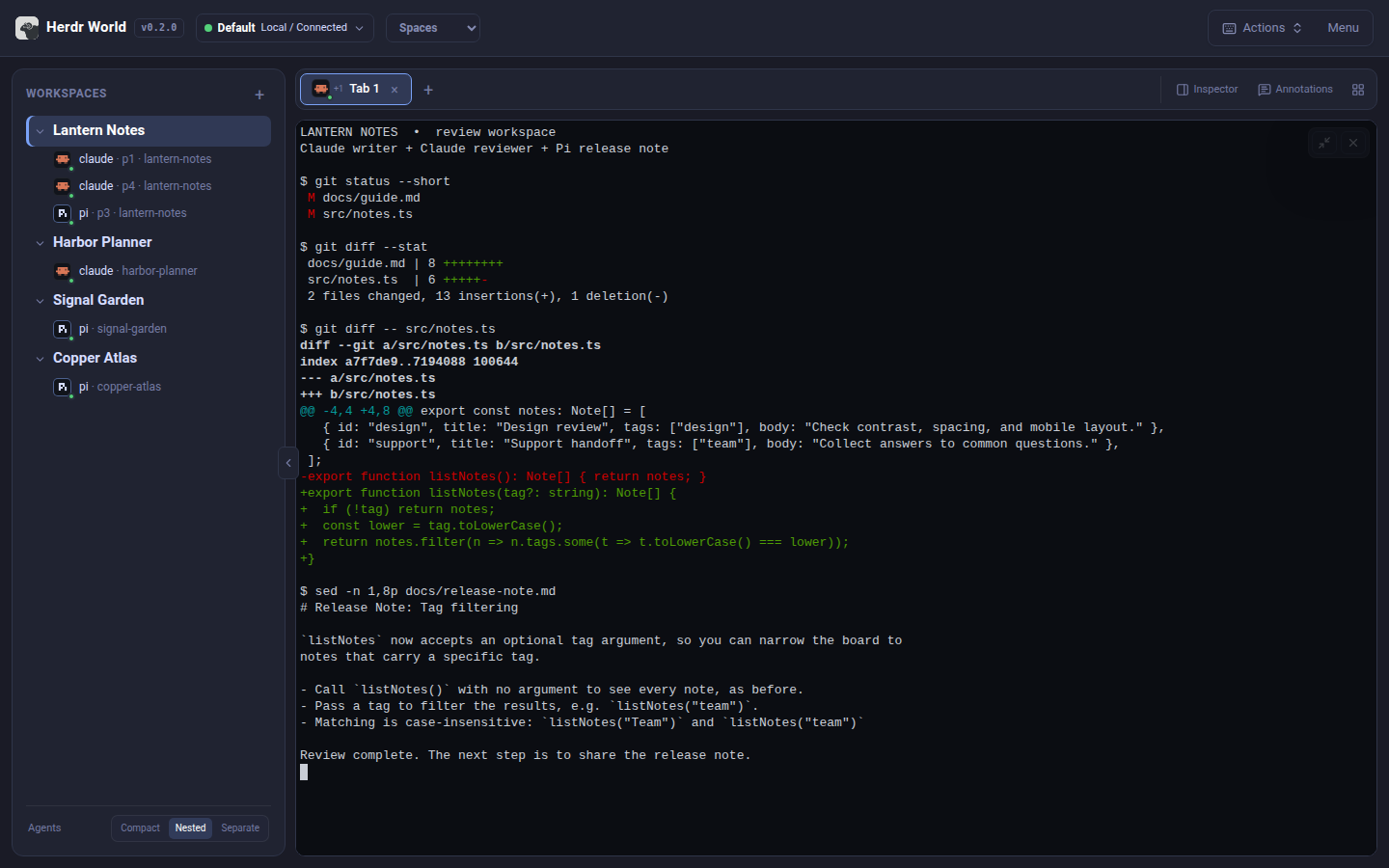
Find the project and active pane. Screenshot menu positions can differ by release.
Choose a view for the task
Use the view switcher to move between these views without restarting work:
| View | Use it for |
|---|---|
| Town | Explore host buildings, workspace rooms and team tables; the default landing view |
| Board | Pin notes beside hosts, workspaces and agents, string them together and send a note to an agent |
| Desk | Find agents needing input, review finished turns and follow work in flight |
| Spaces | Work in one workspace's terminal panes, files, changes and history |
Office, Tree and Graph have been retired; /office opens Town, and /graph and
/tree open Board. The exercises below use Town, Board, Desk and Spaces. Board
and the retirement are on current main; check the latest release notes
for released availability.
Hosts starts at All hosts. Choose a host set to reduce the overview; use Manage connections to add or reconnect a local or SSH profile. Filtering changes what you see and does not disconnect hosts or retarget open terminals.
Explore Town: find work that needs you
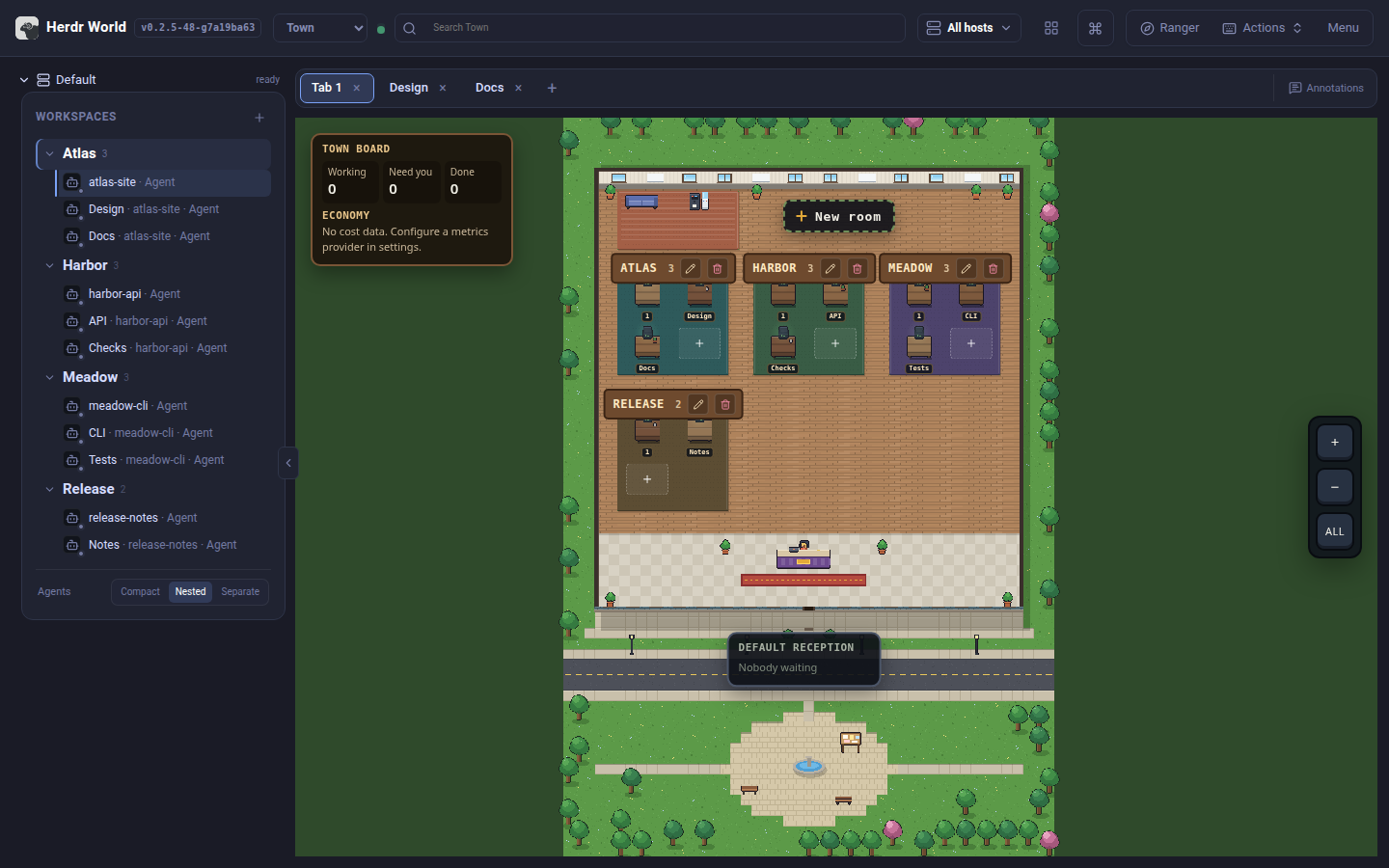
- Open Town from the view switcher, or return to the World root URL. Each host is a building, each workspace a room, each tab a table and each pane a seat. Plain terminal panes show a prompt rather than an agent character.
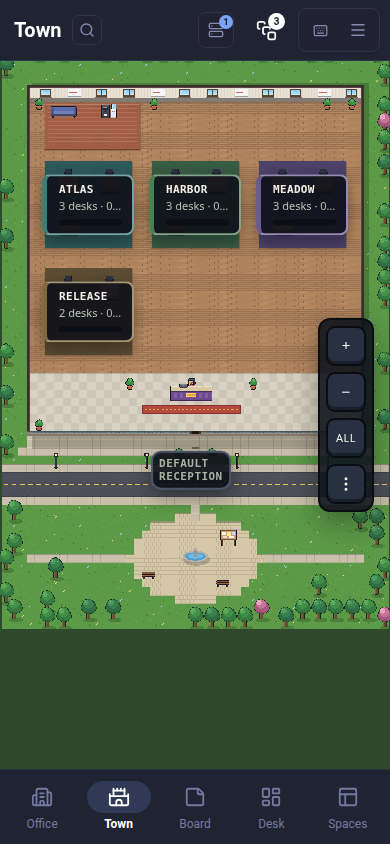
- Use + and − to move between town, building, room and desk detail; ALL shows the whole town. Drag the background to pan, or use arrow keys when the scene has focus. Tap a room to zoom in. Large towns may initially show roofs; zoom in to see room summaries and desks. Phones stack buildings vertically.
- Look at reception for blocked agents waiting for input, oldest first. Finished agents also wait there until you open their terminal or mark that completion reviewed, then join idle agents in the lounge. These locations visualize status; they do not move the underlying pane or change its host.
- Hover or tap an agent to open its peek. The NEEDS YOU list provides another route to waiting agents and becomes a bottom tray on phones; it hides when no agent is blocked. The peek shows recent session messages, falling back to terminal screen text when history is unavailable, and highlights a question when one can be identified.
- Read the question before using an answer button: it sends the offered key to that live pane. When no supported choices appear, use the reply line or Terminal. Desktop replies send from the peek; on phones the reply line opens World's Composer inside the peek, with keys, attachments, Insert and Send. Insert prepares input; Send submits it.
- Use the paperclip to attach files to the reply. Uploads go to the selected pane's host; review the message and attached paths before sending. Choose Inspector for files, changes and history, or Terminal for direct work. Next cycles waiting agents, then finished agents when no other agent is waiting.
- To move a table to another room, zoom in until you see tables, then drag it with the mouse, or hold it for a moment on a phone and then drag. Drop it on another room of the same building; the plaque under your pointer says where it will land, or why it cannot. To move one agent, drag it onto another table instead. From the keyboard, focus a table or agent and press M to choose a destination. The live panes move, so agents keep running. If a move fails part-way, Town tries to move the panes back, and its notice says what happened: back in the original room (the table's pane layout may differ), only partly moved, or locations unknown. Unless the notice says the table is back, check both rooms before you carry on. Moving a room's last table closes that room, so Town asks first.
A table with more panes than drawn seats shows the count and offers a chooser for every pane. When a table closes, the tables after it close up so the room keeps no gap. New room creates a workspace; room actions also create tabs and manage the room. Check the destination host before creation. Stale buildings remain visible but cannot accept operations. Use search and the Hosts filter to narrow the work you are following. The Town calm motion setting reduces ambient animation.
Mark reviewed acknowledges that completion in this browser. Opening a finished agent's terminal also clears its reception stop; neither action proves the result is correct. A later completion can need review again. Read the explanation and check the diff using chapter 2 before treating the work as complete.
You are done when: you can find an agent on the expected host, read its peek, and open its terminal or Inspector without losing its workspace context.
Use Board: notes and strings for your agents
Board shows the same hosts, workspaces and tabs as cards on a pin board, beside your own notes. Notes are saved by the World service, so the same board appears on your phone and desktop.
- Choose Board from the view switcher (on a phone it is in the bottom bar). Each host is a dashed zone, each workspace a card, and each tab a card around its workspace. A tab with several panes lists them as rows; a tab of plain shells looks like a small terminal. A working agent's tab pulses (as does the selected tab); idle, finished and waiting tabs stay still, and the ⋯ menu turns the pulses off. Each workspace card counts its agents by status. The round + on a workspace's right edge (shown on hover or selection) opens New tab: choose a Terminal, Claude or Codex, optionally name the tab, and press Create; + beside a host's name creates a workspace. Select a workspace or tab to give it a colour of your own (a tab takes its workspace's colour unless it has one); status keeps its own colours.
- Scroll or pinch to zoom, drag empty board to pan, or use the controls at the bottom right. Zoomed out, each workspace shows a square per pane (hollow for shells); tap a workspace there to zoom in on it.
- Drag a workspace and its tabs follow; cards settle within about a second. The chevron on a workspace's top-left corner folds its tabs behind a count, and tapping the count opens them into free space. The sparkle button tidies the selected workspace, or the whole board, and offers Undo; notes strung to cards move with them, and notes left on a card move to free space.
- Tap a workspace, tab or pane row to open its Inspector with Terminal, Files, Changes and Agent History; a line joins each Inspector window to its card. Double-click a tab to open its terminal.
- Double-click (or double-tap) empty board to pin a note and type; double-click a note to edit it. Tap a note for its bar: colour, Edit, String to…, Delete (or press Delete).
- Drag a card's red dot onto a pane row, a tab or a workspace to string a note to it; a tab with several panes asks which pane. Drop it on empty board for a new note strung to where you started. Click a string, then Delete, to remove it.
- A note strung to an agent's pane offers Send to
. World remembers which agent was in the pane when you made the string. Before sending, it checks the current runtime, the pane and terminal, and that the same agent is still there, then sends the note once. If another agent has taken over the pane, even in the same terminal, nothing is sent: World names the new agent and offers Send to it instead. Nothing is sent without your action. Start an agent… opens the same dialog: choose the workspace and the agent, optionally name the tab, and press Start and send; the note is sent once the agent is ready. (Starting a chosen agent kind currently opens a shell; see issue 219.) - Drag a tab onto another workspace of the same host to move it there (on a phone, hold the tab still for a moment first; a quick swipe pans). Board asks first, with Don't ask again, and always asks before moving a workspace's last tab, which closes that workspace. Strings follow the move.
After Herdr restarts, Board cannot prove that a workspace or agent is the one a string was made with, so it draws those strings dashed and asks once per host: Keep or Detach. A string whose target closed waits in Needs a home (the red count in the controls), where you can re-attach its note or discard the string; notes always stay. If Board misbehaves, describe the steps that led there in a bug report.
You are done when: you can find your workspace card, pin a note and string it to the intended workspace or pane. Read the target before using Send.
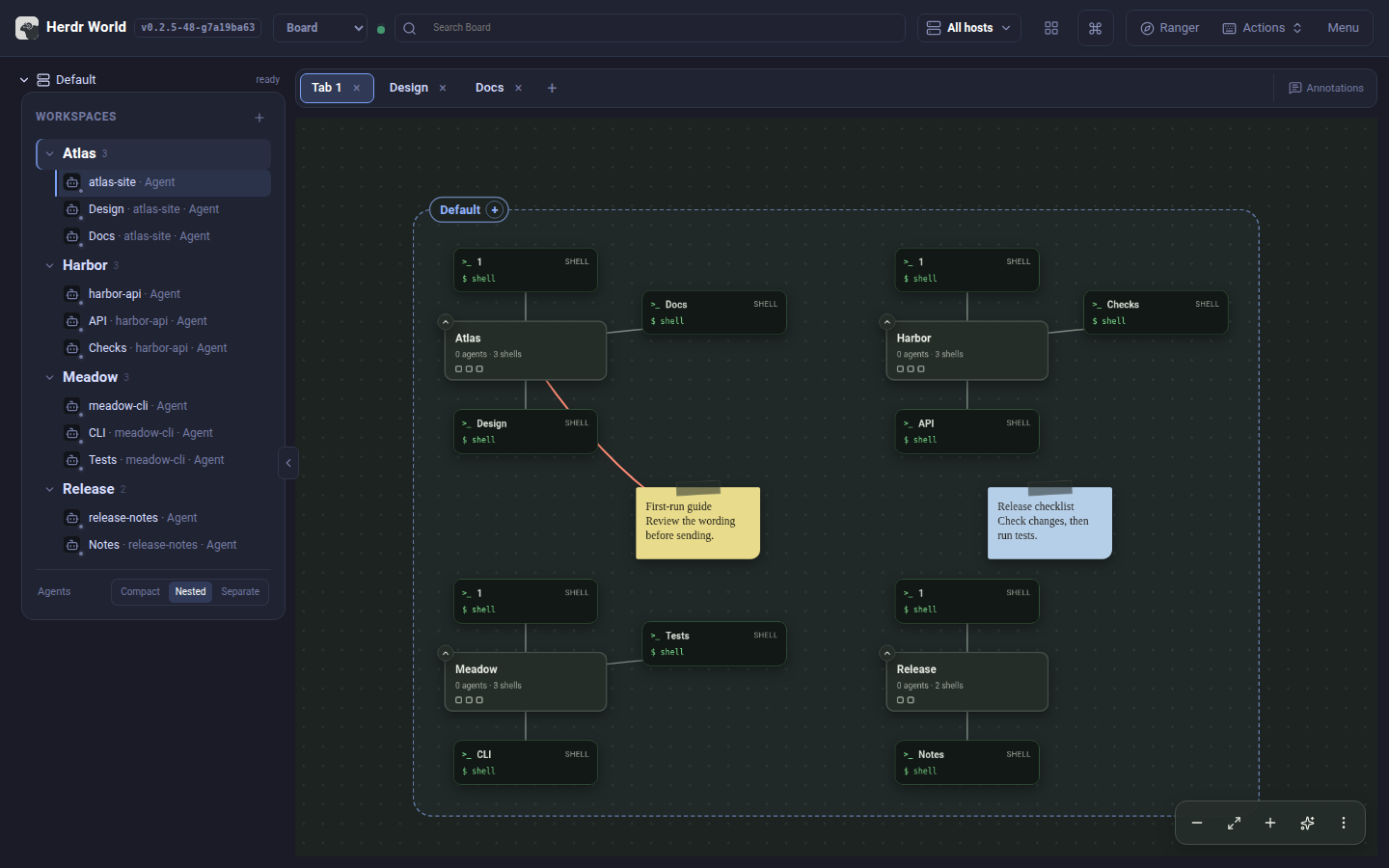
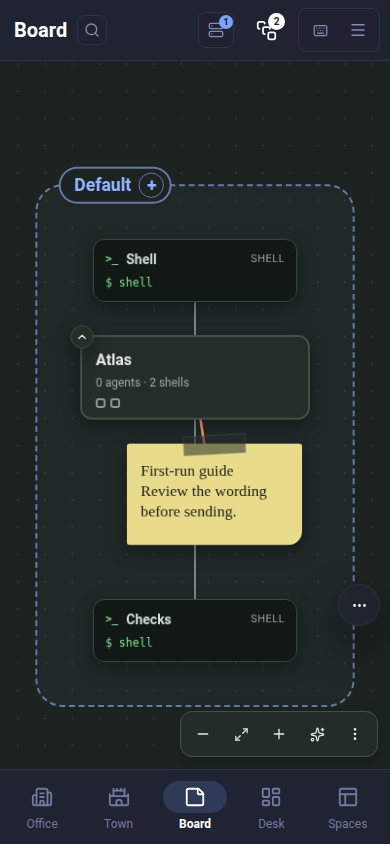
The Town and Board screenshots use real shell panes in disposable projects. The phone Board close-up focuses one workspace, its tabs and a strung note. Their empty agent counts are intentional; the notes are sample planning text, not reports of completed agent work.
Use Desk: answer, review and follow work
Use Town for a spatial view and Board for your arrangement of cards and notes. Desk offers the same agent work as a queue organized by attention rather than location. Use Actions > New workspace or New tab from a visual view; confirm the destination host. Creation needs a ready host and prepares the source terminal before opening the result in the current view.
In Desk, start with Needs you for blocked agents, To review for finished turns and In flight for running work. Open a card to inspect the terminal, files, changes or history. Read the result and verify the diff before using Mark reviewed; the mark is saved in this browser and does not commit files or certify success. Agents lists all agents in your Hosts filter; Reviewed lets you reopen a marked turn.
On wide screens, selecting a Desk card opens a reading pane on the right and folds the lanes into one queue. Use J / K to preview neighboring agents, Enter to enter the terminal and Esc to close the pane. Phones open the Inspector full screen. Search with / across names, workspaces, requests and reports. Mark reviewed acknowledges a turn only after you have inspected it; it does not verify the work for you.
You are done when: you can find the same agent in Town, Board or Desk and open its terminal on the expected host.
On desktop, Arrange windows can tile or cascade open Inspectors; use Open windows to restore minimized ones. On mobile, one Inspector fills the screen: use the on-screen Back to return straight to the visual view, including when Composer is open. The phone's own Back closes Composer first, then the terminal on the next press. Use the ellipsis controls for additional navigation. Closing an Inspector leaves the terminal session running.
Learn this one hierarchy
| Object | What it is | Example in this exercise |
|---|---|---|
| Workspace | A working environment, usually associated with a project directory | Your project repository |
| Tab | A layout within a workspace | A documentation tab |
| Pane | One terminal region within a tab | An agent on the left, tests on the right |
| Worktree | Another real checkout directory of the same Git repository | An isolated documentation branch |
Splitting panes does not isolate files. Terminals in the same directory modify the same checkout; use chapter 3 for parallel changes.
2. Everyday work: verify what the agent changed
2.1 Find the terminal you want to control
Open the command menu to search workspaces, files, tabs, panes, and agents;
enter README.md to open a project-relative path. Defaults differ by platform:
use Keyboard Shortcuts or interface menus.
- Select your practice project and create a tab from its menu.
- Split right from the pane actions menu (
Cmd+Don macOS). - Start an installed, signed-in agent CLI on the left; keep a shell on the right.
- Open the recent pane switcher (
Ctrl+Tabon macOS). Release its opening modifier to switch or pressEscto cancel.
You are done when: you can switch panes and know where typing will go.
Browsers may reserve
Cmd+T,Cmd+W, orCmd+D; use menus or the shortcut editor. PWAs are often more reliable. Do not substitute Ctrl for every Cmd.
2.2 Give the agent a small, reviewable task
Use a repository you may modify. Paste, review, and manually submit this prompt; model usage may incur charges.
Read this project's README and add a short first-run example.
Check the project's actual commands first; do not invent flags.
Modify only the README. Do not install dependencies, commit, or push.
When finished, explain what changed and what you have not actually verified.
Watch Herdr's recognized status: working suggests activity, blocked needs
attention, and done/idle suggest when to return. Status is not verification:
done does not mean tests passed. Available states depend on agent integration.
Open Agent History to find the explanation. Session Inspector offers Timeline, ATIF (a normalized trajectory), and raw transcript; original export preserves the source record. Use the shortcut reference for History, Files, and Changes on your platform.
You are done when: you found the explanation, not just the last terminal line.
Inspection supports Codex, Claude, Kimi, Grok Build, Pi, and Antigravity CLI with readable records. Follow missing-metadata integration hints. SSH reads Herdr-reported paths and Pi ID lookups remotely; other local ID/directory fallbacks may miss remote transcripts. See session inspection.
2.3 Read the file, then the diff
- Open File Explorer from the interface menu and find
README.md. - Switch between Raw / Rendered to check both the source and formatting. Previews also support images, Mermaid diagrams in Markdown, and standalone Mermaid files.
- Open Diff Viewer from the interface menu. Select the working-tree scope and inspect the README's added and removed lines.
- Use
Cmd/Ctrl+Fin the diff to find the command the agent added. Confirm that it actually exists in the project's configuration.
You are done when: you can identify the new lines and verify the run command.
File-tree search covers loaded files, not repository-wide full-text search.
Right-click/long-press for file actions, drag to upload, or download a file or
.tar.gz directory. Cmd/Ctrl+Click on terminal paths opens previews.
Uploads, deletions, and SSH file operations affect real target-host files.
2.4 Send precise feedback back to the agent
- Click/drag diff line numbers and comment, for example: "Use the dev command in package.json." Source annotation gutters and rendered Markdown selections also accept comments.
- Check files, ranges, and quotes in the review panel; reorder as needed.
- Choose the agent pane and pre-fill its input with compiled feedback.
- Review the full message in that pane and press Enter yourself.
You are done when: the agent receives located, contextual feedback. Pre-filling does not submit.
Drafts stay in this browser/checkout, not GitHub PRs or other devices. Failed re-anchoring marks a comment stale but retains its original quote.
2.5 Do not rush into bulk actions
Diff Viewer separates staged, unstaged, untracked, and conflicted files. Context actions stage/unstage matching changes; More Git actions affects multiple files.
This exercise needs no commit. To commit, first run git status in the
shell and follow the project's checks/commit process. Staging is not committing;
committing is not pushing.
Discard Unstaged loses unstaged changes; Delete Untracked deletes files. Confirmation is not a backup. When uncertain, cancel and preserve files.
3. Parallel work and mobile access
3.1 When do you need a worktree?
For simultaneous tasks that edit files, use separate worktrees: each has its own checkout directory and branch.
- Confirm that the repository has a fetchable
origin/main, and inspectpaseo.jsonif it exists. If you do not trust its commands, disable hooks for this repository through Worktree hooks before proceeding. - Open Worktree Lifecycle from the workspace context menu, or search for
worktree lifecyclein the command menu. - Create and open a documentation worktree. Herdr World starts it from the latest
fetched
origin/main, without carrying over the source workspace's uncommitted changes. - In the new worktree's terminal, run
pwdandgit status. Confirm the directory and branch before starting the agent.
You are done when: tasks have separate checkouts and independently reviewable changes. Group/collapse/pin preferences stay in this browser.
paseo.jsonsetup/opened/teardown/removed hooks are enabled by default and run repository code, remotely in SSH mode. Before removal, save/commit wanted results, end tasks, and read the confirmation. Hook failure can block removal; see hook boundaries.
Leave Automatic branch updates off for this exercise. When enabled, they
fetch/merge origin/main every 10 minutes by default, never push, skip dirty or
detached checkouts, and abort conflicts. They run only while the workspace is open
in this connection. See update controls.
3.2 Continue from your phone
First complete chapter 4's Tailscale + Serve setup and access checks.
Use its HTTPS URL: 127.0.0.1 on a phone means the phone, not the work computer.
- Open Herdr World in the mobile browser and select your practice project and agent pane. Authenticate first if your deployment requires login.
- Use the floating terminal panel for arrow keys, Ctrl, and other actions that are awkward on a touch keyboard. Customize its two shortcut rows as needed.
- Open Changes to review the README diff. Mobile uses a unified diff layout;
long-press a file to open its actions menu. To open a link printed in a
terminal, long-press it and choose Open link (on a computer,
Cmd/Ctrl-click it). - Adjust Menu > Appearance > Text size (80%-150%), then use the relevant platform entry below to install the PWA.
| Browser / device | Installation entry |
|---|---|
| iPhone / iPad Safari | Share > Add to Home Screen |
| macOS Safari 17+ | File > Add to Dock |
| Chrome / Edge | Browser menu > Install app |
You are done when: the home-screen icon opens your project. Install the stable Herdr World service URL, not this tutorial's Pages URL.
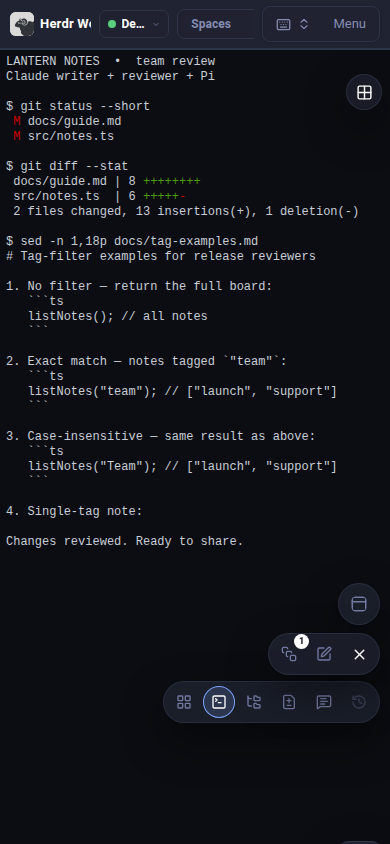
PWA is not offline access or background keep-alive. Host sleep, stopped Herdr World, or a disconnected VPN interrupts access. Completion notifications can return to a pane, but browser permissions and OS restrictions make them unsuitable as reliable alerts.
3.3 Multiple browsers are not separate permission roles
Browsers share Herdr events and visual pane pins; fonts, review marks, drafts, workspace pins and shortcuts can remain browser-local. Connection controls can pause your browser or others.
Profiles are shared; each browser saves its own Hosts filter. Town, Board, Desk, their counts, and search initially show all hosts and follow that filter. Changing the filter preserves open Inspectors and the owners of pending operations. Manage connections controls lifecycle separately; global creation confirms one destination. Editing a profile affects others' connection lists. There is no per-person read-only role: do not share a workspace URL like a document link.
4. Remote access: choose the right connection
Choose Tailscale + Serve for everyday phone/computer access. Use SSH if you already have SSH access and only need another computer. Reserve Tailcat for temporary experiments between computers you control.
| Your goal | Recommended route | What you need |
|---|---|---|
| Use Herdr World on the computer running Herdr | Local Herdr World | No extra networking tool |
| Reach the workspace from your phone away from home | Tailscale + Serve | Host and phone in the same tailnet |
| Manage remote Herdr through local Herdr World | SSH profile / --ssh-host | Local Linux/macOS, Herdr already running remotely |
| Connect two computers temporarily without a tailnet | Tailcat port forwarding | Tailcat on both ends and a securely exchanged address |
These external tools are not built-in integrations. No router forwarding, exit node, or subnet routing is needed. Verify the chosen route on your own network before relying on it.
4.1 Separate the two network hops
Hop A: Browser -> Herdr World
       Tailscale Serve / SSH TCP forwarding / Tailcat port forwarding

Hop B: Herdr World -> Herdr
       Local sockets / a Herdr World SSH profile
Tailscale/Tailcat solve hop A (browser to Herdr World); --ssh-host solves
hop B (Herdr World to Herdr). Start with the hop you need.
Safety checks before connecting
- Admit only fully trusted devices/people: UI access is terminal/file authority as the Herdr World user.
- Every listener requires login, including loopback. Set
HERDR_WORLD_PASSWORDto 15–1024 characters or use the generated token. - Use HTTPS or a trusted encrypted tunnel; restrict listeners and access policy. Login throttling applies to failed attempts; passwords provide no TLS, multi-user authorization or sandbox.
- Never publish passwords, token URLs, or Tailcat addresses in screenshots, issues, chats, or configs.
Read SECURITY.md. These are private-access examples. Use an independently authenticated proxy if you need additional access policy.
Do not bind 0.0.0.0 just to force login: that expands network exposure.
4.2 Tailscale + Serve: the recommended everyday option
Tailscale links authorized devices in a private tailnet, using WireGuard with direct connections or relays. Serve gives local HTTP a tailnet-only HTTPS address.
Phone browser (connected to Tailscale)
          |
          | HTTPS, restricted by tailnet access policy
          v
Tailscale Serve on the work computer
          |
          | HTTP, local loopback only
          v
127.0.0.1:8787 -> Herdr World -> local Herdr
Prepare both devices: about 5-10 minutes
- Install Tailscale on the host and visiting device. Sign into the same tailnet; confirm both are online in its admin console.
- Run
tailscale statuson the host. For a missing macOS CLI, follow the macOS instructions, not a second client installation to fix PATH. - Restrict access to intended users/devices on the Herdr World node's HTTPS port 443. Check broad existing rules. Tailnet membership is not least privilege: verify scope before enabling Serve.
Start Herdr World with a local-only listener
On the Herdr host, ensure port 8787 is free. If a plugin/user service already runs Herdr World, follow the existing-service instructions below; do not duplicate it.
herdr-world --host 127.0.0.1 --port 8787
On Windows, use herdr-world.exe (./herdr-world.exe from its PowerShell directory).
Leave the process running.
No Herdr World login page: Tailscale identity/access rules admit remote devices directly. HTTPS protects transport. Local processes can also access loopback. Continue only if you accept this boundary.
Existing service: edit ~/.config/herdr-world/herdr-world.env (Unix) or
%APPDATA%\herdr-world\herdr-world.env (Windows). Preserve other settings; set
HOST=127.0.0.1 and PORT=8787. This removes the token/password gate: Tailscale
policy must replace it. Protect this potentially secret file; never commit it.
Restart for your installation:
Standalone installation:
herdr-world service restart
Plugin installation:
herdr plugin action invoke herdr-world.restart
Plugin actions are asynchronous: confirm restart in its panel/log. See service configuration and logs.
Connect from another terminal on the same work computer
-
Check for existing Serve configuration you need to preserve:
tailscale serve status -
Confirm HTTPS port 443 at
/is free. If occupied, use official documentation to plan another port/node; do not overwrite another service.tailscale serve --bg --https=443 http://127.0.0.1:8787Approve the first-run HTTPS certificate consent link as an authorized admin. Hostnames appear in public certificate transparency logs: avoid sensitive names.
-
Configure the printed HTTPS address as World's one proxy origin and restart World. For a foreground process, stop it with Ctrl+C and restart it:
HERDR_WORLD_PUBLIC_ORIGIN=https://machine-name.tailnet-name.ts.net \
  herdr-world --host 127.0.0.1 --port 8787
For an existing service, add the same
HERDR_WORLD_PUBLIC_ORIGIN=...line to its environment file and repeat the standalone or plugin restart command above. Use the exact origin printed by Tailscale, without a path or trailing slash. -
On your Tailscale-connected phone, open the printed address, shaped like
https://machine-name.tailnet-name.ts.net. Use the printed HTTPS hostname, not a bare IP address or localhost on your phone. -
Run
pwdin an idle shell pane to verify terminal interaction. Test that a tailnet device excluded by your access rules cannot connect; if you have no suitable test device, at least verify the denial using policy tests. With Tailscale disconnected and no other access path, the HTTPS endpoint should also be unreachable.
You are done when: cellular access works with Tailscale, and excluded devices cannot connect. Incognito is not an admission test; device identity stays the same.
Serve is private; Funnel is public. Do not substitute
funnel. Serve identity headers add no Herdr World per-person/read-only roles. Use domain root/; arbitrary subpaths such as/studio/are not assured.
Stop sharing, or make it a regular setup
Before closing this endpoint, check that other mounts will not be affected:
tailscale serve --bg --https=443 off
tailscale serve status
tailscale serve reset clears the device's entire Serve configuration, including
other services. --bg persists Serve, not Herdr World, and does not prevent sleep.
After verification, configure a Herdr World user service
if needed, keeping loopback and strict Tailscale policy.
4.3 SSH: connect to Herdr, or forward the web interface
Option A: local Herdr World, remote Herdr
Use local Herdr World with remote code/agents. Herdr World must run on Linux/macOS for SSH socket forwarding; Windows supports native local profiles only.
- Verify connectivity with system SSH, confirm the host fingerprint, and check
authentication and the already-running remote Herdr server. Put custom
ports, jump hosts, and keys in local
~/.ssh/config; for example, configure the destination as the aliasworkbox. - In local Herdr World, add an SSH profile through the connection selector beside
the title. Set Destination to
workbox, leaving the control and render socket paths empty for automatic resolution. - Test and connect using the selector. Open the remote project and run
pwdin its terminal to confirm the directory.
Or start a local bridge on a free port:
herdr-world --ssh-host workbox --host 127.0.0.1
You are done when: the local browser controls the remote terminal/files. Image uploads, Git, file operations, and hooks run on that remote host.
Explicit --socket-path / --client-socket-path or environment equivalents
override tunnel paths; stale settings can select the wrong target. Profiles
store no passwords/keys; OpenSSH owns host verification/authentication. See
connections.
Option B: Herdr World already runs remotely; forward its web port
Both services stay remote; system SSH forwards the web port (not --ssh-host).
Remote Herdr World must use loopback: login is bypassed, so SSH authentication controls
remote admission. Visiting-computer processes can also use the forwarded port.
This option works with Windows OpenSSH too.
On the visiting computer, replace workbox with your SSH alias:
ssh -N -o ExitOnForwardFailure=yes -L 127.0.0.1:18787:127.0.0.1:8787 workbox
Open http://127.0.0.1:18787 there, not on your phone. HTTP stays on loopback at
each end; SSH encrypts the link. -N runs no remote command; 18787 is local,
8787 remote. Press Ctrl+C in this terminal when finished.
4.4 Tailcat: a temporary link between trusted computers
Tailcat is a separate Tailscale-team tool, not Tailscale. It uses WireGuard, NAT traversal, and DERP without a tailnet/account, but offers no long-term device directory or access-policy management. Its client maps remote ports to localhost; privately exchange the server's address.
Experimental: no upstream CLI/API/wire stability promises or relay availability/throughput SLA. Its threat model primarily covers your own devices. This project has not verified this example end-to-end on two machines. Check both versions and
tailcat --help,tailcat serve --help, andtailcat forward --helpforserve,forward, and--key=newsupport. Update through official instructions; do not guess flags.
Prepare both ends
Install supported versions on both computers from the
official repository: macOS supports
brew install tailcat; other systems need the matching release architecture.
The experimental web demo is not a general Herdr World proxy, and phones are not
assumed to support these CLIs. Use Tailscale for regular mobile access.
Connect only the Herdr World port
-
Run Herdr World on the work computer at
127.0.0.1:8787and verify its local page. This listener has no Herdr World login gate. The experiment relies entirely on Tailcat admission; leaking the address leaks access to the workspace. Use only two computers you control, not a demo for other people. -
In another terminal on the work computer, start a temporary single-port service:
tailcat serve --key=new 8787--key=newforces an ephemeral key, avoiding reuse of a previously shared address when a saved key nameddefaultalready exists. Confirm that the output says it is using a new address. -
Send the complete printed
tc...address through a trusted private channel to the visiting computer. Run this there, replacingtcREPLACE_WITH_PRIVATE_ADDRESSfirst:tailcat forward tcREPLACE_WITH_PRIVATE_ADDRESS 18787:8787Upstream's
forwardbinds to127.0.0.1by default. Verify that in its output; do not add--bind=0.0.0.0. -
On the visiting computer, open
http://127.0.0.1:18787and runpwdin an idle shell pane to verify interaction. -
When finished, press Ctrl+C in both Tailcat terminals. Confirm the visiting computer's address no longer works. Once the ephemeral server exits, the old address no longer corresponds to a running service.
Visiting browser -> 127.0.0.1:18787 -> tailcat forward
                                          |
                                 WireGuard encryption
                                 (direct or via DERP)
                                          |
Work host: Herdr <- Herdr World :8787 <- tailcat serve
You are done when: the trusted computer has access without a public listener, and access stops when both forwarding processes exit.
Protect the Tailcat address as a credential: default addresses include a
pre-shared key, not just a hostname. Keep default protections; avoid weakening
compatibility options. Do not expand to serve all, exit-node mode,
authentication-free SSH, or writable-directory sharing.
Which one should you choose?
| Consideration | Tailscale + Serve | Tailcat |
|---|---|---|
| Best fit | Regular private access across your devices | A short-lived connection between your computers |
| Who gets access | Tailnet identity and policy; no Herdr World login gate in this example | The connection address and optional client restrictions; no Herdr World login gate in this example |
| Browser entry | A private HTTPS hostname | Localhost exposed by the client CLI |
| Ongoing responsibility | Maintain device sign-ins, policies, and services | Protect the temporary address, check versions, and stop processes |
Neither tool guarantees a direct connection on every network. A DERP relay does not mean encryption is disabled, but performance may differ from your LAN.
5. Troubleshoot the hop that failed
A page will not open: check in order, about 3 minutes
-
On the Herdr World host, probe its HTTP service:
curl -fsS http://127.0.0.1:8787/healthzUse
curl.exein Windows PowerShell. This is a service probe, not proof that every Herdr feature works. For a refused connection, check the Herdr World process, port, and service status before changing the VPN. -
Open Herdr World locally on its host, authenticating first for a non-loopback deployment. If the page appears but the terminal does not, check that Herdr is running, the selected profile, control and render socket paths, and connection errors in the logs.
-
Once local access works, check hop A. For Tailscale, use
tailscale statusandtailscale serve status. For SSH, confirm the forwarding terminal is still running. For Tailcat, check both processes and that the address belongs to this server run. -
If the page loads but typing produces no output, check that the browser connection is not paused, the right pane is selected, and the proxy supports WebSocket upgrades and long-lived connections. Retry locally to distinguish proxy trouble from Herdr rendering trouble.
You are done when: you identified the failing service, Herdr connection, or access path and changed only that part.
Five common symptoms
| Symptom | Check this first |
|---|---|
| Localhost on the phone does not open the computer's workspace | Localhost points to the phone. Use Serve's printed HTTPS URL. |
| Herdr World opens directly despite a configured password | Loopback listeners skip built-in authentication. For non-loopback listeners, use a fresh incognito window to rule out an existing cookie. |
Address already in use | A plugin or user service may already occupy 8787. Do not start a duplicate bridge. |
| SSH connects, but session history is empty | Check remote transcript readability and the metadata/fallback limitations in chapter 2. |
| Image paste, clipboard access, or PWA installation is restricted | Check the HTTPS secure context, browser permissions, and platform support. Prefer the Serve HTTPS address. |
See deployment for token recovery, restarts, and debug logs. Do not disable authentication permanently or open the entire firewall. For help, share redacted logs, OS/Herdr World versions, and the failing step.
Your first round is complete
Check before finishing:
- I know which workspace, tab, and pane will receive my input.
- I reviewed the actual diff and know that an agent's "done" is not verification.
- I know which host receives file and Git operations.
- For remote access, I checked the effective authentication boundary, listener address, allowed users, and how to stop sharing.
Next time you open Herdr World, take one small action: find an agent waiting for you and inspect one part of its diff.
References and maintenance
Third-party commands follow official sources. For fast-changing Tailcat, check your installed version's help.
Product references
- Features and shortcuts: complete capabilities, limitations, and action reference.
- Installation and deployment: the canonical reference for binaries, plugins, profiles, services, and configuration.
- Security model: permissions, authentication, and trust boundaries.
- Architecture: read this when you want to understand the bridge, events, and connection isolation.
Official networking references
- Tailscale Serve concepts and requirements and CLI configuration and shutdown.
- Tailscale access controls and HTTPS certificates and public names.
- Tailscale Funnel: why this is not the private endpoint recommended here.
- Tailcat README: installation, port forwarding, keys, and stability.
- Tailcat security model: read the current limitations before experimenting.
The Pages build renders this canonical Markdown; do not duplicate its body in HTML. Review affected chapters when installation flags, feature limits, or upstream networking commands change.